Quick start (5 minutes)
Three things to try after installing DevGo — they cover the core of what it does.
1. Full-page bilingual translation
What it does: translates the whole page, with each translation placed right after the original paragraph.
How: open any page in a foreign language, then pick one —
- Toolbar icon → Translate page → "Translate this page"
- Right-click an empty spot → "Translate this page (click again to restore the original)"
- Bind a shortcut for "Toggle page translation" at
chrome://extensions/shortcuts
Translations load as you scroll — long pages don't wait for the whole thing. Click "Show original" to restore.
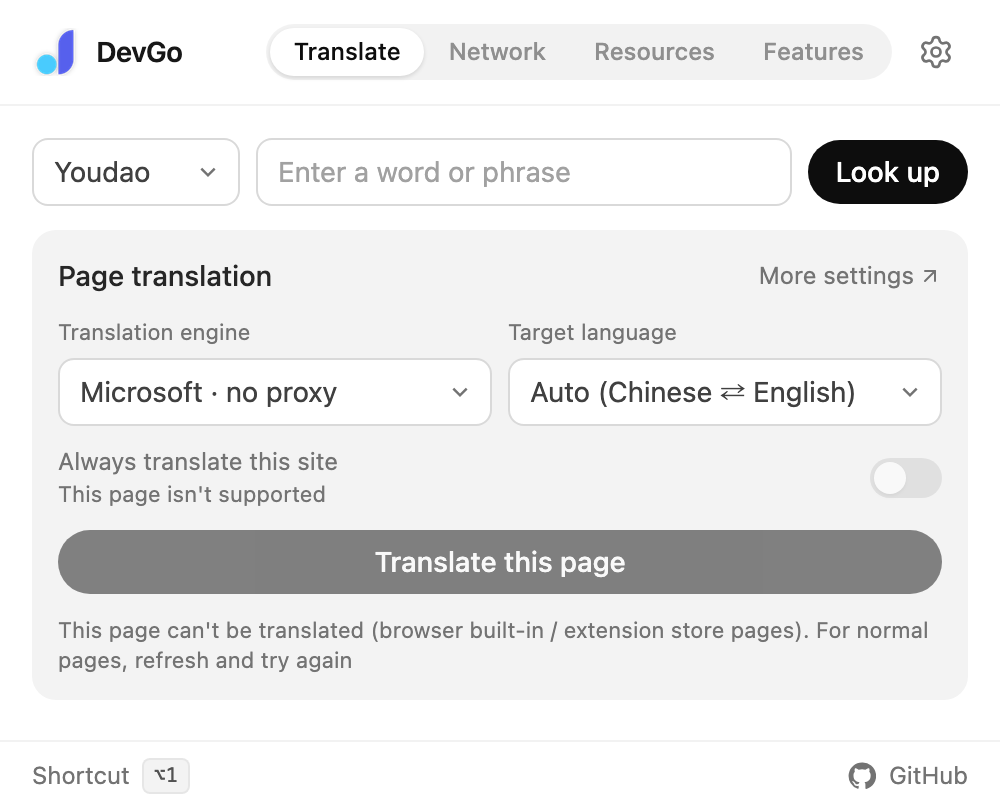
The popup's Translate page: "Translate this page" starts the bilingual view; translations load as you scroll.
TIP
The default engine is Microsoft (works without a proxy). You can switch to Google or your own AI model — see Full-page bilingual translation.
2. Selection translation and AI actions
What it does: select text and a toolbar appears — no page navigation needed.
How: select text on a page —
- On page text: Translate / Explain / Summarize / Ask AI; selecting a single English word also shows dictionary definitions
- In input fields: Polish / Fix / Formal, plus custom actions that apply to inputs; AI results can replace the original text in one click
- Need more actions? Add your own under Settings → Selection → Toolbar actions (e.g. "Convert to JSON", "Explain the error") — just a name and a prompt
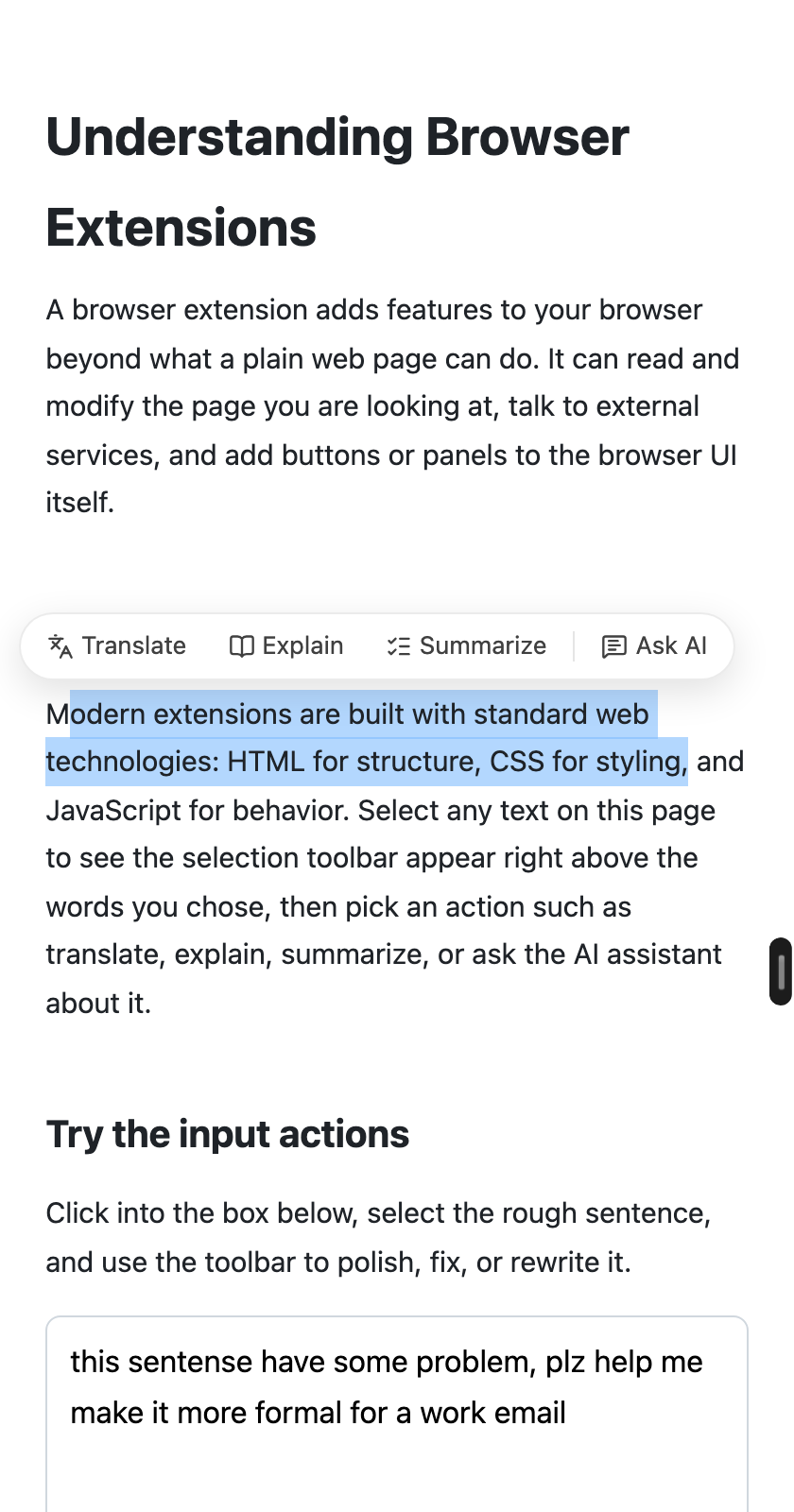
The toolbar that appears when you select text: Translate / Explain / Summarize / Ask AI.
TIP
AI actions need a model first — see AI models. Find the toolbar distracting? Turn it off for just the current site from the popup's Features page.
3. Floating dock
What it does: a slim dark strip on the right edge of every page; hover to expand quick actions.
How: move the pointer to the right edge —
- Translate this page / Show original: toggle full-page translation
- AI summary: opens the side panel and starts summarizing
- AI assistant: opens the side panel chat
- Back to top: appears after you scroll down a bit
The dock can be dragged up and down. Click the × at its corner to hide it — for now, on this site, or on all sites.
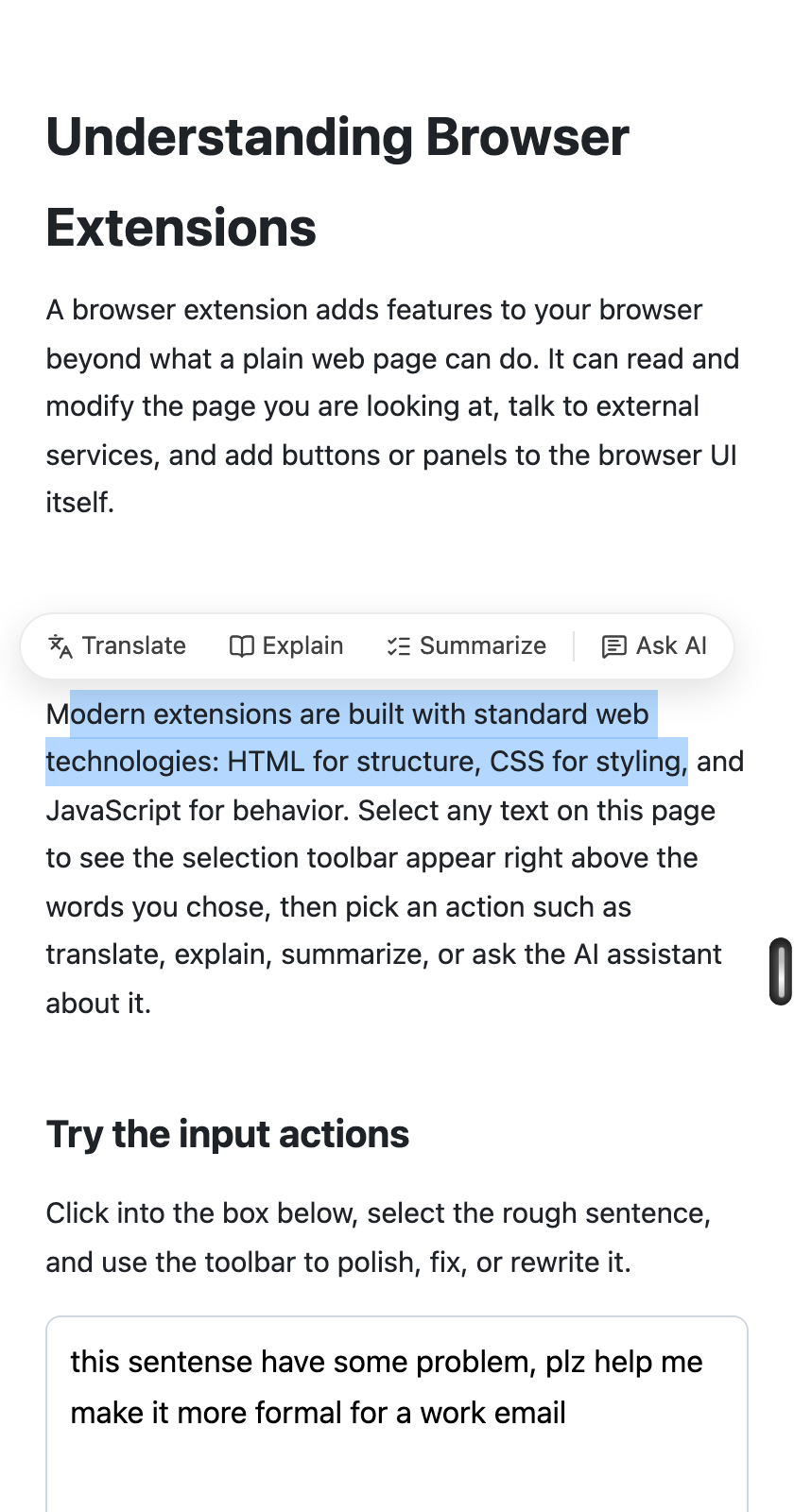
The floating dock on the right edge, expanded on hover.
Default shortcuts
| Shortcut | Action |
|---|---|
Alt+1 (⌥1 on macOS) | Open the popup (default page) |
Alt+2 (⌥2 on macOS) | Open / close the side panel AI assistant |
Alt+3 (⌥3 on macOS) | Open the popup's Network page |
Alt+4 (⌥4 on macOS) | Open the popup's Resources page |
| Not bound | Toggle page translation (bindable at chrome://extensions/shortcuts) |
All shortcuts are customizable — see General & appearance.
Next steps
- Configure AI models to unlock AI explain, summarize, polish, and the side panel assistant
- Browsing through a proxy? Read up on Real IP protection
- Want the AI to act on pages? See Page tools (WebMCP)