Real IP protection
In one line: with a proxy on, sites can still use WebRTC to bypass it and grab your real IP — and from it guess your city and carrier. With protection on, sites only see the proxy's IP.
What it covers — and what it doesn't
- Covers: web pages using WebRTC (the tech behind in-page audio/video calls) to slip past your proxy and probe your real IP and LAN addresses
- Doesn't cover: other apps on your computer (they don't go through the browser); precise location permission requests — the browser prompts for those separately
If you browse through a proxy, turn protection on. Without a proxy you usually don't need it.
Protection levels
Under Settings → Network → Real IP protection:
| Level | Effect | Cost |
|---|---|---|
| Off (browser default) | Pages can quietly get your real IP and LAN addresses | None |
| Hide VPN / virtual adapters | Stops exposing extra adapters like VPNs and VMs | Minimal: calls that only connect via VPN / virtual adapters may fail |
| Hide LAN addresses | Pages can't see home / office network addresses | Small: same-LAN calls and P2P reroute through the internet, possibly slower |
| Hide real IP (recommended) | With a proxy on, pages only see the proxy's IP | A few in-page video calls may slow down or fail |
These settings save immediately — no need to click "Save and apply" above.
The confirmation dialog: what changes, what's affected
The first time you pick a level (or flip one of the toggles below), DevGo explains three things before anything changes. Only "Confirm" applies it:
① What DevGo actually does (for "Hide real IP"): changes the browser's WebRTC settings — disallowing UDP connections that bypass the proxy — so pages' audio/video connections must go through the proxy and sites can't get your real IP. Applies to all pages.
② Features that may be affected:
- In-browser video meetings and voice calls (Tencent Meeting / Feishu / Google Meet web, etc.) may slow down, stutter, or fail — more so if the proxy doesn't support UDP
- In-page P2P file transfer, live-stream chat, and real-time connections in some web games
- With no proxy on, some in-page calls may also fail to connect
The dialog also states: regular browsing, watching videos, downloads, and client apps on your computer (like meeting clients) are unaffected.
③ How to recover: if a web meeting won't connect, set the level back to "Off" to restore. The popup's Network page shows whether protection is on.
The other levels and toggles work the same way: "Disable in-page audio/video calls" lists that all web meetings, voice calls, and screen sharing stop working; "Hide camera and microphone" lists that in-page recording, photo upload, voice input, and identity verification stop working — each dialog ends with its matching recovery step.
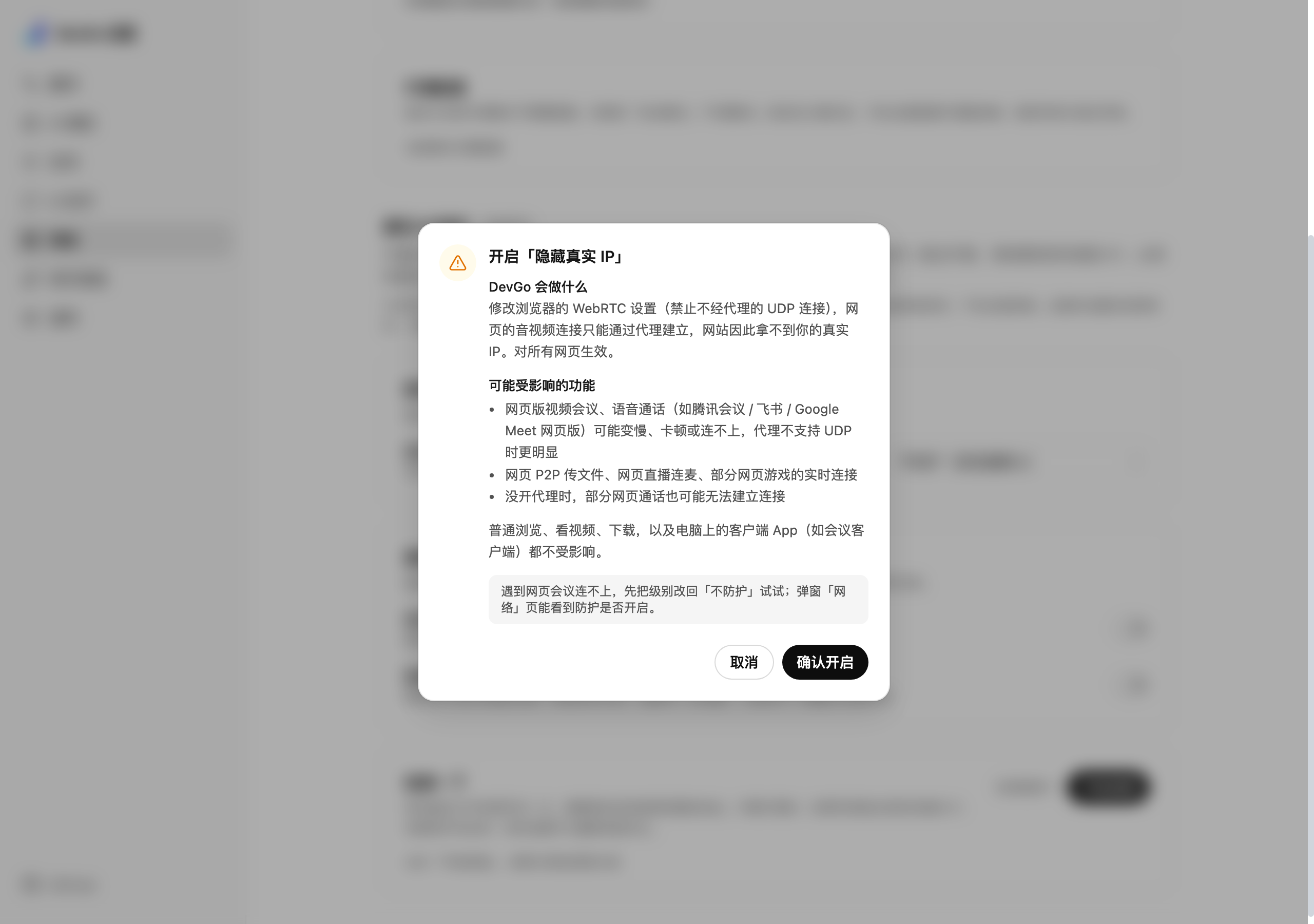
The confirmation dialog before enabling "Hide real IP (recommended)" — what actually changes, which features may be affected, and how to recover. (Screenshot shows the Chinese UI; an English version is pending.)
Stricter blocking
Beyond levels, two independent toggles no site can get around — at the cost of those features outright. Refresh pages after changing:
- Disable in-page audio/video calls (WebRTC): removes WebRTC interfaces before pages load; sites can't get any of your IPs. All in-browser meetings, calls, and P2P file transfer stop working
- Hide camera and microphone: blocks the media-device interfaces; sites can't see which devices you have (often used to identify and track your computer) or use them
Run a check
Built into the settings page: click "Start check" and a page you have open probes what a site can actually get —
- Public IP: with a proxy on, this should be the proxy's IP — your real IP here means protection isn't working
- LAN address: your internal address, best kept hidden
- Local address (anonymized by the browser; safe): the browser already mDNS-anonymizes this
Re-run after changing settings to compare.
Permissions and control status
- The first time you enable protection, the browser asks for the "Change privacy settings" permission (
privacyis optional and only requested when you enable). If it was denied and protection says "Not granted yet", picking the level again re-requests it - The status line shows what the browser is actually using; "controlled by another extension" (another WebRTC extension, say) or locked by policy means DevGo's settings won't apply until that's resolved
In the popup
The popup's Network page always shows whether protection is on; with a proxy on but protection off, an orange warning says sites may still see your real IP and links straight to the settings.
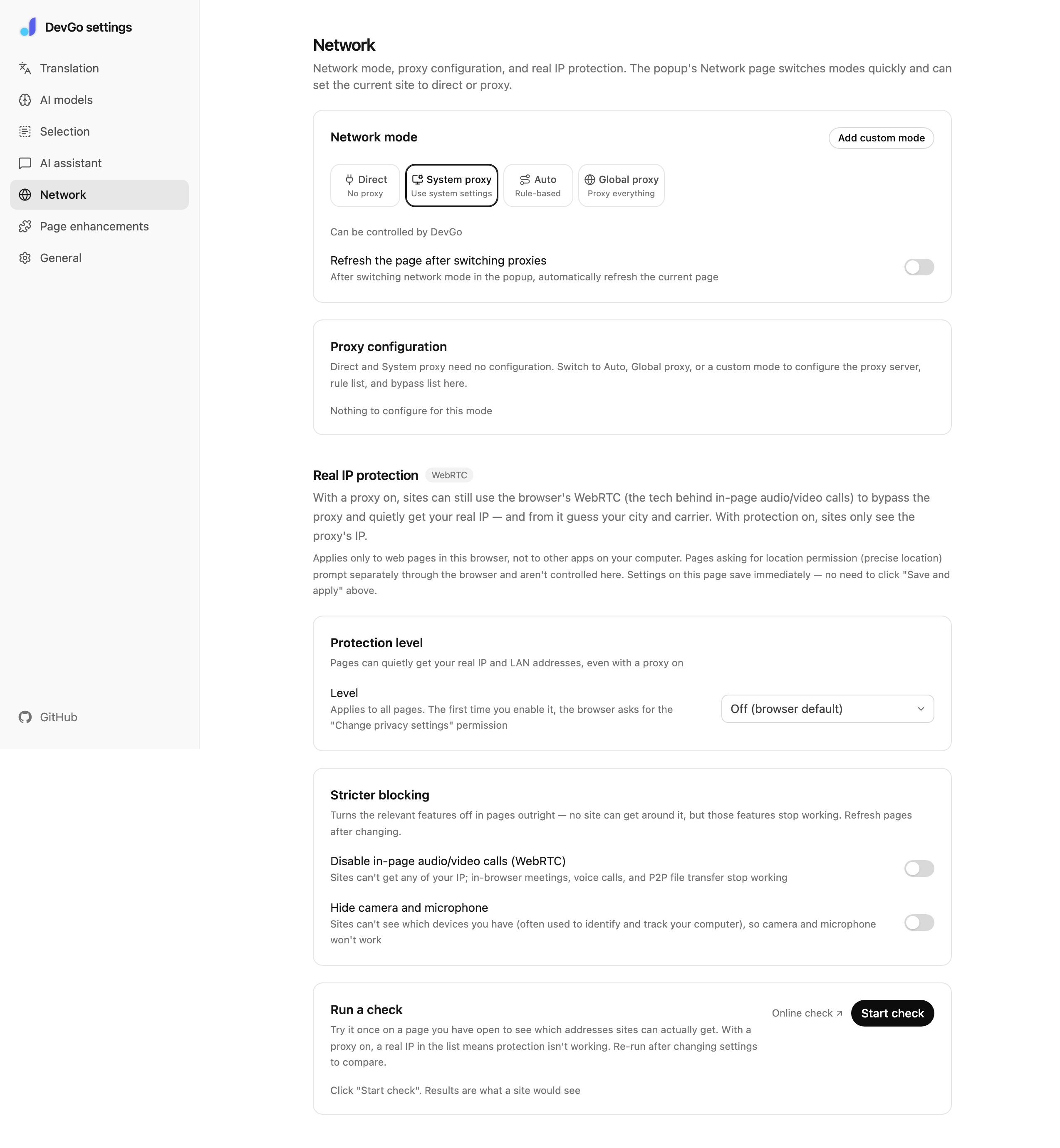
Settings → Network → Real IP protection: protection level, stricter blocking, and the built-in check.