Selection toolbar & custom actions
In one line: select text on a page and a toolbar appears above it — translate, explain, summarize, or ask AI. Select text in an input field and the toolbar switches to writing mode: polish, fix, or formalize, then replace the original in one click.
On page text
Select text and the toolbar pops up:
- Translate: translates the selection; a single English word also shows dictionary definitions
- Explain / Summarize: the AI reads the surrounding paragraph and page title for context
- Ask AI: opens the side panel with the selection attached
- More than four actions fold into the "More" menu
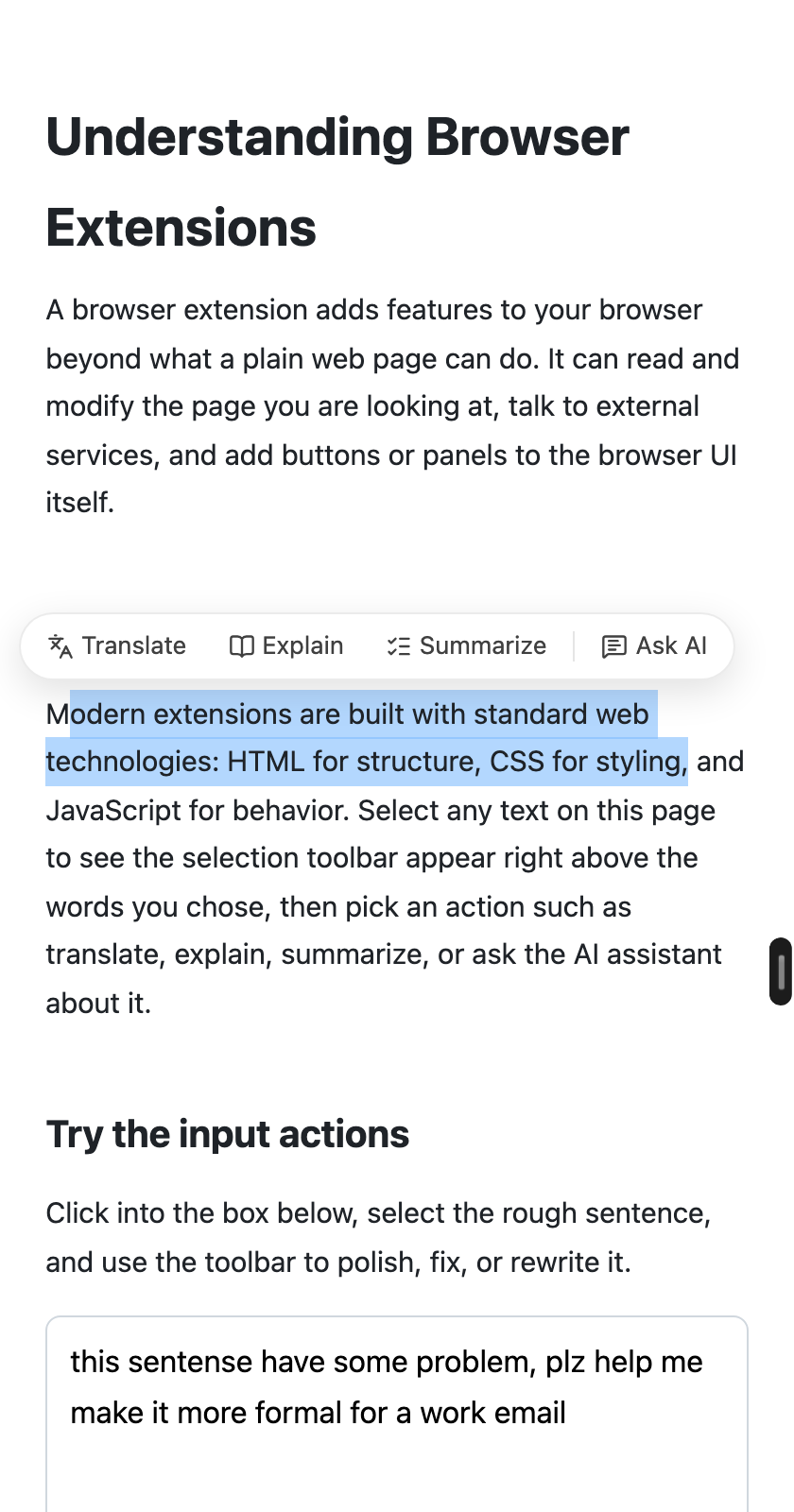
The selection toolbar on page text.
The result panel sits right below the selection and follows it as the page scrolls; pin it to freeze it on screen, or drag it anywhere. The bottom row supports Copy, Follow up, and Retry.
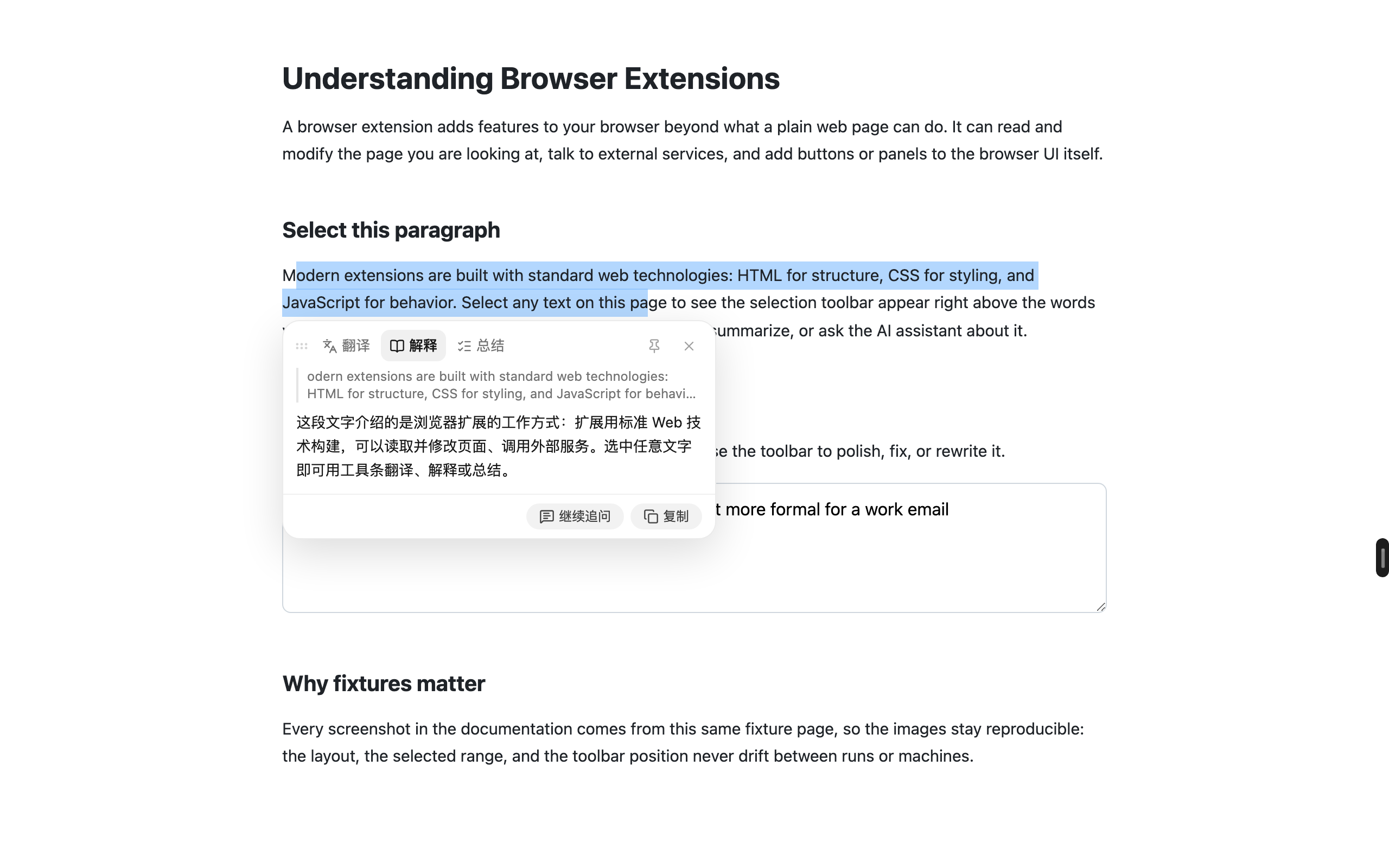
The "Explain" result panel: switch actions at the top; follow up or copy at the bottom.
In input fields
Select text inside an input (comment boxes, search boxes, web editors) and the toolbar switches to writing mode: Polish, Fix, Formal, plus your custom actions that apply to inputs. When the AI finishes, click "Replace original" to swap the field's content for the result.
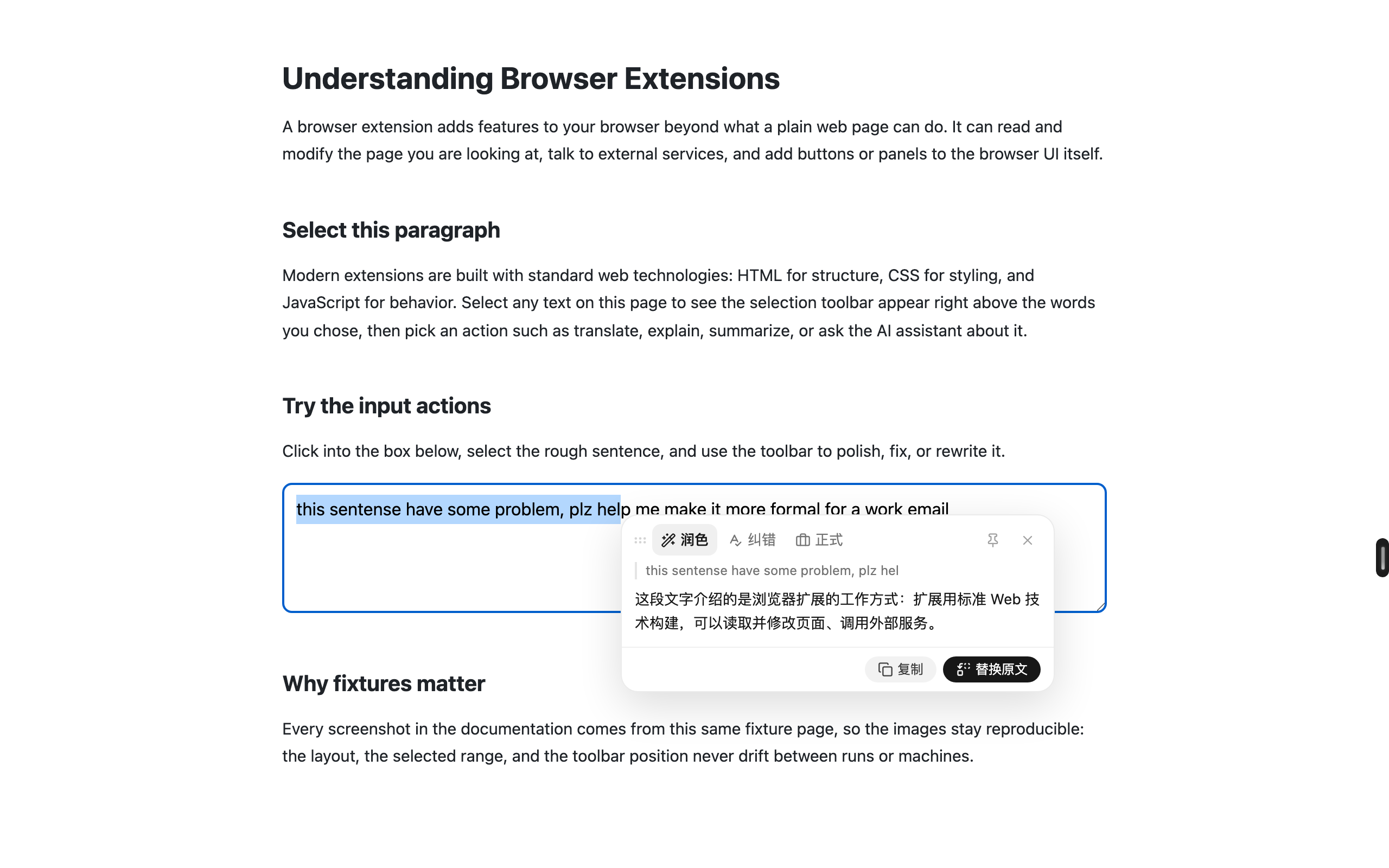
Writing mode in an input field — after the AI polishes the text, "Replace original" swaps it in. (Screenshot shows the Chinese UI; an English version is pending.)
Custom actions
When the built-ins aren't enough, add your own under Settings → Selection → Toolbar actions → Add action:
- Name: shown on the toolbar, e.g. "Translate to English"
- Icon: pick from 12 common icons
- Applies to: Page text / Input fields / Both
- Prompt: tell the AI how to handle the selection, e.g. "organize the selection into clean JSON and output only the JSON"
No need to wire up context yourself — like built-in actions, requests automatically attach the paragraph around the selection and the page title.
Three example templates ship built-in, one click to add: Translate to English, Explain the error, Convert to JSON.
The management area also supports edit, delete (with confirmation), and move up / move down; built-in actions can be hidden individually. The toolbar shows up to four actions directly — the rest go into "More".
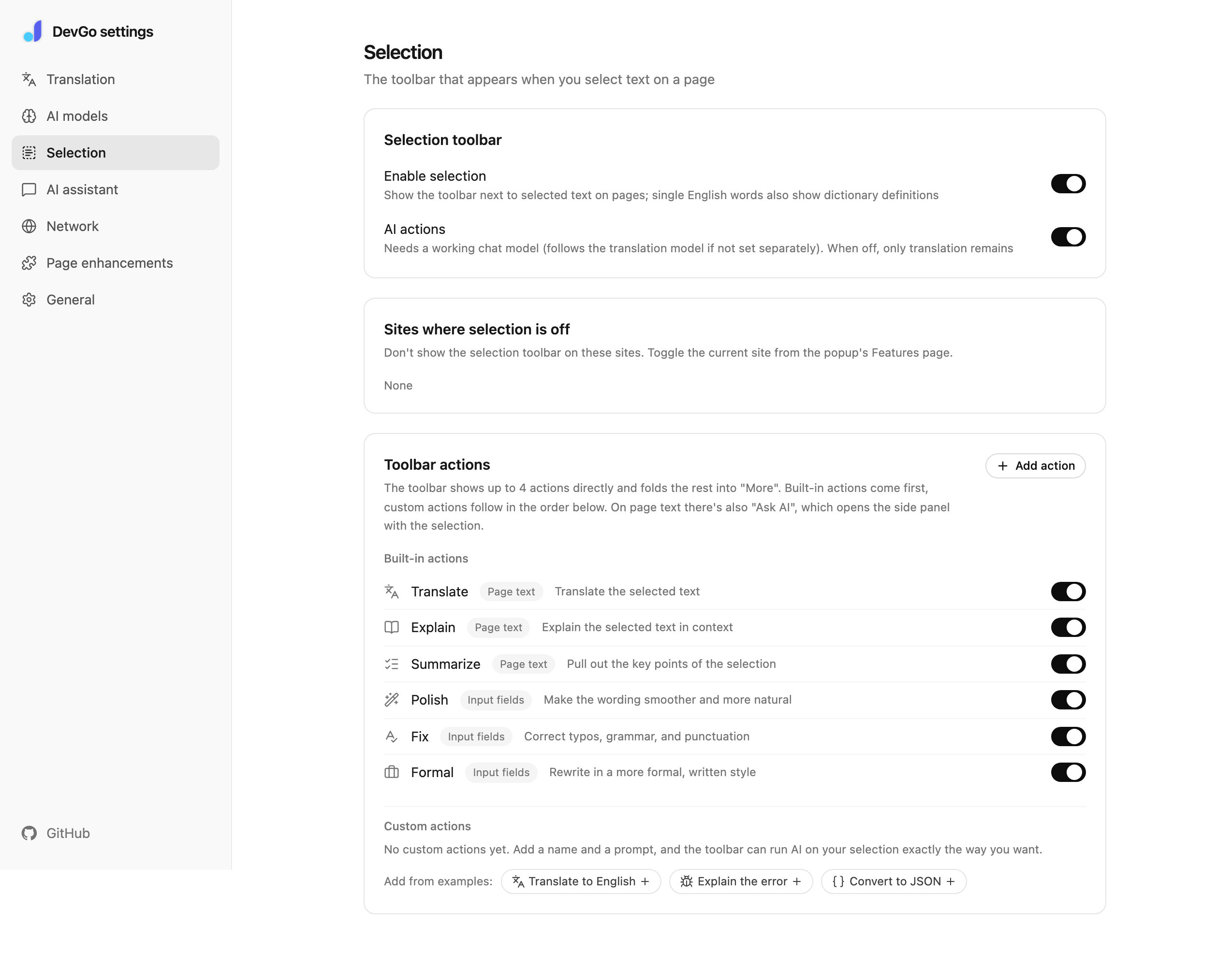
Settings → Selection → Toolbar actions: built-in action switches and custom action management.
Toggles
- Global switch: Settings → Selection → "Enable selection"; "AI actions" can be turned off separately (translation only)
- Per site: the popup's Features page has a switch for the current site only — turning it off shows "Off on {host}". The list is managed under Settings → Selection → "Sites where selection is off"
Notes
- AI actions need a chat model (the translation model is used until one is set separately)
- For one annoying site — an online editor, say — use per-site off rather than killing the global switch
- Custom actions are included in backup export / import, so they survive a machine switch